




Fonts
Page 1
Any Disney project needs a proper Disney font; there are plenty of styles and themes to choose from. Scroll to the bottom of the page to learn how to install and use them.
-
Tristan


-
Waltograph


Designed by MickeyAvenue.com.
-
Atlantean


Designed by the Walt Disney Company.
-
TwyliteZone Book

Designed by Oliver Conte Design.
-
Ravenscroft

Designed by Kronos & MickeyAvenue.com.
-
Denmark

-
Forbidden Eye
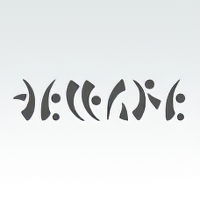
Designed by the Walt Disney Company. Remastered and improved by David Occhino.
-
Manzanita

-
Seized Future, Seized Future A, Seized X-S

Designed by MickeyAvenue.com .
-
DecoTech, DecoTech TL

-
Prototype Community
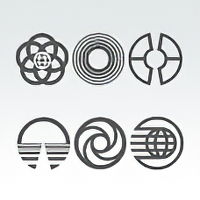
Designed by MickeyAvenue.com.
-
Skellingtonbats
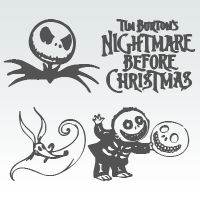
Designed by LockerGnome.com .
-
PS Bluegum Forest

Designed by Tris Nguyen.
-
Space Age

Designed by MickeyAvenue.com.
-
JSL Ancient

Designed by Jeffrey S. Lee.
-
Started By a Mouse


-
Gracey's Curse
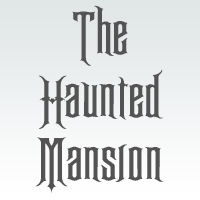
-
Font 33

Designed by The Ghost Host.
-
Space Station 77

Designed by The Ghost Host.
-
"Brother Bear"

Designed by the Walt Disney Company.

Installing Fonts
Windows 7/8/10
To install new fonts, follow these steps:
- Download the file(s), and unzip it. Right-click on the file and choose Extract All.
- Select a temporary location (it will be deleted later) to save the file(s). Click the Extract button.
- Highlight the font file(s), right-click, and click Install.
- The font(s) is now installed. Delete the font file(s) from the temporary save location.
Windows Vista
To install new fonts, follow these steps:
- Download the file(s) to the Desktop, and unzip it.
- Save the font files(s) to a temporary location (it will be deleted later).
- Press the Start button.
- Choose Control Panel.
- Choose Appearance and Personalization.
- Choose Fonts.
- Open the File menu, and choose Install New Font.
- Locate the folder that contains the saved font file(s).
- Select the font(s) that you want to install, and press Install.
- The font(s) is now installed. Delete the font file(s) from where you temporarily saved them.
Windows XP
To install new fonts, follow these steps:
- Download the file(s) to the Desktop, and unzip it.
- Save the font files(s) to a temporary location (it will be deleted later).
- Press the Start button.
- Choose Control Panel.
- Choose Appearance and Themes.
- On the far left menu, choose Fonts.
- Open the File menu, and choose Install New Font.
- Locate the folder that contains the saved font file(s).
- Select the font(s) that you want to install, and press OK.
- The font(s) is now installed. Delete the font file(s) from where you temporarily saved them.
Windows '95 w/Plus!, Windows '98, 2000, ME, NT
To install new fonts, follow these steps:
- Download the file(s) to the Desktop, and unzip it.
- Save the font files(s) to a temporary location (it will be deleted later).
- Press the Start button.
- Choose Settings.
- Choose Control Panel.
- Open the Fonts folder.
- Open the File menu, and choose Install New Font.
- Locate the folder that contains the saved font file(s).
- Select the font(s) that you want to install, and press OK.
- The font(s) is now installed. Delete the font file(s) from where you temporarily saved them.
Mac OS X 10.2 & Later
To install new fonts, follow these steps:
- Download the file, and unzip it.
- Double-click the font file. This will work for Mac-specific and Windows-based fonts alike — the Mac OS works with all of them.
- Click Install Font
How to Use Dingbats
Some fonts come with images; some fonts are nothing but images. To access the images―known as dingbats―you simply press a combination of keys on your keyboard. All computers with Windows come with a simple program called Character Map. This program will show you every character available from every font installed on your computer, along with the key(s) you need to press to use the characters/images. Character Map is usually found on the "Start" menu, somewhere under "Accessories."